


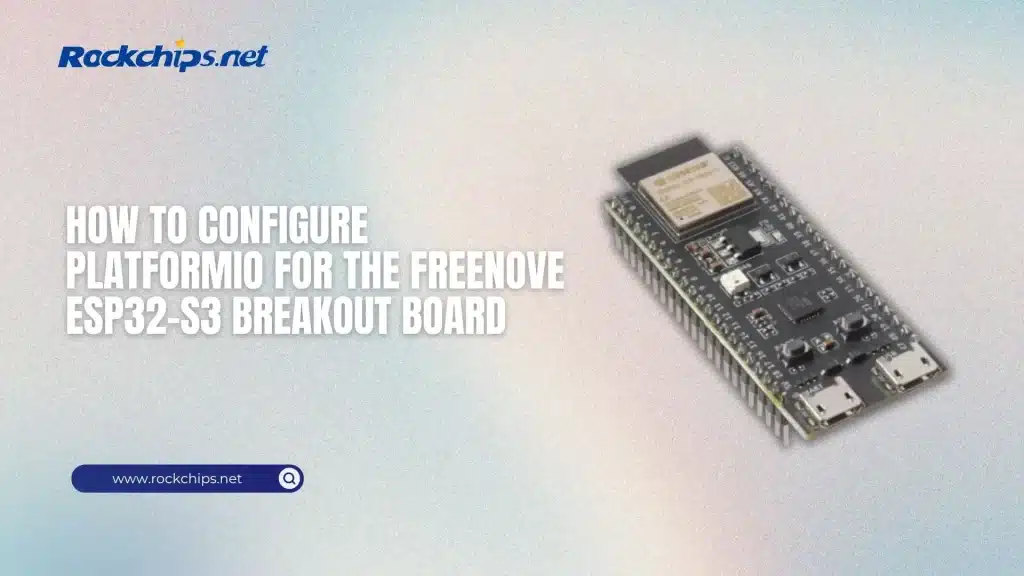
Why this board is slightly confusing in PlatformIO
If you just plug in a Freenove ESP32-S3 breakout board and open PlatformIO, you’ll notice something odd – the exact board name may not always show up in the list.
That’s because under the hood, most Freenove boards are not “unique platforms.” They are based on the standard ESP32-S3 WROOM module with specific flash and PSRAM configs.
PlatformIO actually supports this hardware, but sometimes under a slightly different board ID.
Once you understand this, setup becomes trivial.
Table of Contents
- Step 1. Create a new PlatformIO project
- Step 2. Basic platformio.ini configuration
- Step 3. Fix memory configuration (important)
- Step 4. Upload and monitor
- Step 5. When the board is NOT detected
- Real-world note
- Comparison – Board configs that actually work
- Where this fits in real projects
- Why PlatformIO matters here
- Bigger picture – where ESP32-S3 fits vs newer chips
- Conclusion
Step 1. Create a new PlatformIO project
Open VS Code → PlatformIO → New Project.
Use:
- Board: freenove_esp32_s3_wroom (if available)
- If not available → fallback to:
- esp32-s3-devkitc-1
- or generic ESP32-S3 board
This works because the MCU is still ESP32-S3 running at up to 240 MHz with typical flash + PSRAM layout.
Step 2. Basic platformio.ini configuration
Here’s a clean config that actually works in real projects:
[env:freenove_s3]
platform = espressif32
board = freenove_esp32_s3_wroom
framework = arduino
monitor_speed = 115200
upload_speed = 921600
build_flags =
-DBOARD_HAS_PSRAM
PlatformIO already provides a board definition for this module, including upload via esptool by default.
Step 3. Fix memory configuration (important)
This is where many people get stuck, some Freenove boards use Quad SPI flash and Octal PSRAM, If you get boot issues, add:
board_build.arduino.memory_type = qio_opiWithout this, you might see random crashes or boot loops.
Step 4. Upload and monitor
Typical workflow:
pio run -t upload
pio device monitor
Default upload protocol is already set to esptool, so no extra config needed.
Step 5. When the board is NOT detected
If PlatformIO doesn’t recognize your board:
Use this instead:
board = esp32s3devOr:
board = esp32-s3-devkitc-1The breakout board itself is just exposing GPIO – it doesn’t change the MCU identity.
Real-world note
The Freenove breakout board is basically:
- ESP32-S3 module
- USB power + UART
- GPIO headers
Nothing exotic.
That’s why using a “close enough” board definition works fine.
Comparison – Board configs that actually work
Where this fits in real projects
If you’re building edge devices (robotics, vision, sensors), ESP32-S3 is often used as:
- control layer
- communication hub
- lightweight inference node
For example, in robotics pipelines you might combine it with a higher-performance NPU module like low-power AI processors used in robotics systems.
or pair it with external accelerators such as M.2 AI accelerator modules for edge inference. This hybrid setup is becoming standard in modern edge deployments.
Why PlatformIO matters here
PlatformIO simplifies multi-board development. Instead of juggling Arduino IDE setups, you get: 1) unified build system 2) dependency management 3) easy scaling.
That’s especially important if you’re working with distributed systems like real-time edge AI analytics pipelines.
Bigger picture – where ESP32-S3 fits vs newer chips
ESP32-S3 is great for:
- IoT
- control logic
- lightweight AI
But compared to newer SoCs, it’s not a heavy compute platform.
That’s why many developers are moving toward architectures combining MCU + AI SoC, similar to next-generation Rockchip edge AI chips (RK3688).
Conclusion
Setting up PlatformIO for the Freenove ESP32-S3 breakout board is not complicated – it’s just slightly confusing because of naming and memory configs.
Once you pick the right board (or equivalent), configure PSRAM correctly and use standard upload tools, everything works reliably.
And from there, you can scale from simple IoT scripts to full edge AI pipelines without changing your toolchain.
