


The original PlayStation remains one of the most popular retro gaming platforms, and modern ARM-based single-board computers have more than enough processing power to emulate it smoothly. With RetroArch and the PCSX ReARMed core, running PS1 games on Linux has become surprisingly straightforward – even on compact hardware powered by Rockchip processors.
In this guide, we’ll show you how to build a reliable Linux PS1 emulator using RetroArch on Ubuntu 24.04.4 LTS. Instead of relying on the built-in Core Downloader – which may fail on some Flatpak installations – we’ll install the PlayStation core manually, a method that proved both simple and dependable during our own testing.
Although this walkthrough uses a KiwiPi 5 development board, the same approach works on many other RK3588-based systems running Ubuntu.
If you’re interested in the hardware itself, you can also read our detailed review of the Rockchip RK3588 flagship processor, which explains why this SoC remains one of the strongest ARM platforms for Linux desktops, multimedia, AI, and retro gaming.
Table of Contents
- Why RK3588 Is an Excellent Platform for PS1 Emulation
- Test Hardware
- What You’ll Need
- Step 1: Update Ubuntu
- Step 2: Install Flatpak
- Step 3: Install RetroArch
- Step 4: Skip the Core Downloader (If Necessary)
- Step 5: Download the PCSX ReARMed Core
- Step 6: Install the Core Manually
- Step 7: Launch Your First PlayStation Game
- Troubleshooting
- Frequently Asked Questions
- Final Thoughts
Why RK3588 Is an Excellent Platform for PS1 Emulation
One reason PlayStation emulation performs so well today is that modern ARM processors are vastly more powerful than the original console hardware ever required. Even demanding emulator cores leave plenty of CPU and GPU headroom on the RK3588.
Powered by four Cortex-A76 performance cores and four Cortex-A55 efficiency cores, the RK3588(S) easily handles PlayStation emulation while simultaneously running a full Linux desktop environment. Combined with the Mali-G610 MC4 GPU and Vulkan/OpenGL ES support, RetroArch delivers smooth gameplay with minimal system load.
Boards equipped with either the RK3588 or RK3588S can comfortably emulate classic systems including:
- Sony PlayStation (PS1)
- Nintendo 64
- Sega Saturn
- Dreamcast
- Game Boy Advance
- SNES
- Mega Drive
- Arcade systems supported by FinalBurn Neo
If you’re deciding between Rockchip’s two flagship variants, our RK3588 vs RK3588S technical comparison explains the differences in PCIe lanes, video interfaces, and expansion capabilities. For PS1 emulation specifically, both processors provide essentially identical performance.
Another advantage is software maturity. Ubuntu support for RK3588 has improved significantly over the last few years, making installation of applications like RetroArch almost identical to a standard x86 Linux desktop.
Test Hardware
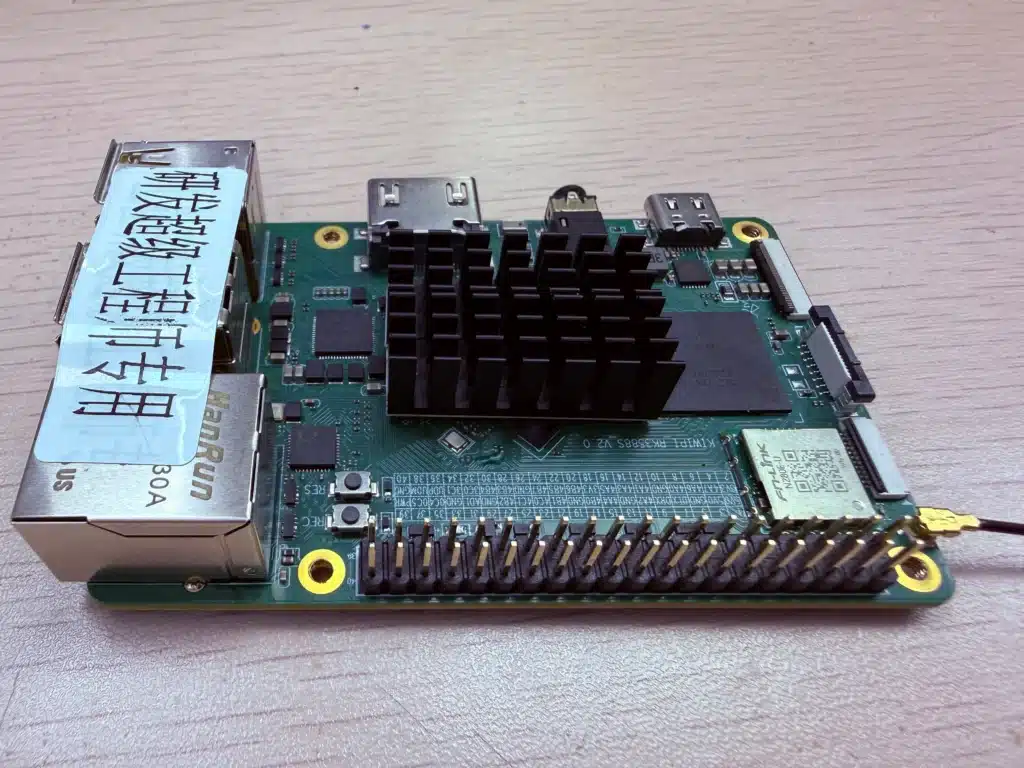
This guide was tested on a KiwiPi 5 running Ubuntu 24.04.4 LTS.
The installation procedure is not limited to KiwiPi hardware. It can also be applied to many other RK3588-based development boards running Ubuntu.
For developers building embedded Linux products rather than standalone SBCs, it’s also worth exploring Computer-on-Module platforms, which use the same class of processors while offering greater flexibility for custom hardware designs.
What You’ll Need
Before starting, prepare the following:
- A board running Ubuntu
- Internet connection
- Flatpak
- RetroArch
- A PlayStation game image
- The pcsx_rearmed_libretro.so core
Supported PlayStation image formats include:
- .cue
- .bin
- .ccd
- .img
- .sub
- .chd
If your game consists of multiple files, keep them together inside the same directory.
Example:
Digimon_World_2.ccd
Digimon_World_2.img
Digimon_World_2.sub
or
Final_Fantasy_VII.cue
Final_Fantasy_VII.bin
Games generally fail to launch if companion files are moved or renamed independently.
Step 1: Update Ubuntu
Before installing any software, update the operating system to ensure all packages are current.
sudo apt update
sudo apt upgrade -y
Keeping Ubuntu updated helps avoid dependency conflicts and ensures you’re working with the latest package versions available for your system.
Step 2: Install Flatpak
RetroArch is available through several package managers, but the Flatpak version is one of the easiest to maintain because it receives frequent updates and works consistently across different Linux distributions.
Install Flatpak:
sudo apt install flatpak -y
Next, add the Flathub repository:
flatpak remote-add --if-not-exists flathub https://flathub.org/repo/flathub.flatpakrepo
Flathub hosts thousands of Linux applications, including the latest stable releases of RetroArch.
Step 3: Install RetroArch
With Flatpak configured, installing RetroArch requires only a single command:
flatpak install flathub org.libretro.RetroArch
After installation finishes, launch the application:
flatpak run org.libretro.RetroArch
The first launch may take a little longer than usual. During startup, RetroArch automatically creates its configuration directories and downloads several default assets.
Once the main interface appears, you’re ready to install a PlayStation emulator core.
Step 4: Skip the Core Downloader (If Necessary)
Normally, RetroArch allows users to install emulator cores directly from the built-in Online Updater.
The usual path is:
Main Menu
↓
Online Updater
↓
Download a Core
However, during our testing on Ubuntu 24.04.4 LTS, the Core Downloader never completed loading. Instead, it remained indefinitely on the message:
Fetching core list...
Interestingly, other online update functions continued to work normally, suggesting the problem was isolated to downloading the core index rather than network connectivity itself.
Rather than troubleshooting the updater, we chose the faster and more reliable approach – installing the PlayStation core manually.
For anyone looking for the original KiwiPi walkthrough, including screenshots from our test environment, you can also read the complete Linux PS1 emulator guide on KiwiPi.
Step 5: Download the PCSX ReARMed Core
For ARM-based Linux systems, the recommended PlayStation emulator is PCSX ReARMed.
The required RetroArch core is:
Download the ARM64 version of this file and save it somewhere convenient.
PCSX ReARMed is specifically optimized for ARM processors, making it an excellent choice for RK3588-based boards. It delivers excellent compatibility with original PlayStation games while keeping CPU usage remarkably low.
Step 6: Install the Core Manually
Return to RetroArch and open:
Main Menu
↓
Load Core
↓
Install or Restore a Core
Browse to the location where you saved:
pcsx_rearmed_libretro.so
Select the file.
RetroArch will register the core automatically, after which it should appear alongside the other installed emulator cores.
If it doesn’t show up immediately, simply restart RetroArch.
Manual installation only takes a few seconds and completely avoids the Core Downloader issue described earlier.
Step 7: Launch Your First PlayStation Game
With the emulator core installed, loading a game is straightforward.
Open:
Main Menu
↓
Load Content
Navigate to the folder containing your PlayStation game.
Depending on the image format, choose:
- .cue for CUE/BIN images
- .ccd for CloneCD images
When RetroArch asks which emulator core to use, select:
Sony - PlayStation (PCSX ReARMed)
If everything has been configured correctly, the game should start within a few seconds.
For the best compatibility, avoid opening .bin or .img files directly. Instead, always load the accompanying .cue or .ccd file, as these contain the disc layout information RetroArch expects.
Troubleshooting
Even though the installation process is relatively simple, a few common issues may prevent RetroArch from launching PlayStation games correctly.
RetroArch Stuck on Fetching Core List
If Download a Core never finishes loading, don’t waste time trying to repair the Online Updater.
Instead, install the emulator manually:
Main Menu
↓
Load Core
↓
Install or Restore a Core
Then select:
pcsx_rearmed_libretro.so
This workaround proved completely reliable during our testing.
The Emulator Core Doesn’t Appear
If PCSX ReARMed isn’t listed after installation:
- restart RetroArch;
- verify that you selected the correct .so file;
- make sure you downloaded the ARM64 version of the core.
In most cases, a simple restart is enough.
The Game Won’t Start
If RetroArch immediately returns to the menu or displays an error, check your disc image.
Multi-file PlayStation games must remain together inside the same directory.
Correct example:
Game.ccd
Game.img
Game.sub
or
Game.cue
Game.bin
Moving or deleting companion files will usually prevent the emulator from recognizing the disc correctly.
Loading the Wrong File
One of the most common mistakes is opening the wrong image file.
As a general rule:
- load .cue for CUE/BIN images;
- load .ccd for CloneCD images;
- avoid opening .bin or .img directly unless absolutely necessary.
The descriptor file contains important information about the disc structure and ensures the game loads correctly.
Frequently Asked Questions
What is the best Linux PS1 emulator?
For most Linux users, RetroArch with the PCSX ReARMed core offers one of the best combinations of performance, compatibility, and ease of use. It’s lightweight, actively maintained, and performs particularly well on ARM-based hardware.
Does RetroArch require a PlayStation BIOS?
Not always.
Many games run perfectly without a BIOS, especially when using PCSX ReARMed. However, installing an official PlayStation BIOS can improve compatibility with certain titles and reduce graphical or audio issues.
Can RK3588 run PlayStation games smoothly?
Yes.
The RK3588 and RK3588S are significantly more powerful than required for original PlayStation emulation. During testing, PlayStation games ran smoothly while Ubuntu continued running normally in the background.
Which PlayStation image format should I use?
The safest options are:
- .cue for CUE/BIN images;
- .ccd for CloneCD images.
Avoid opening .bin or .img files directly whenever possible.
Can I use a USB or Bluetooth controller?
Absolutely.
RetroArch supports most modern USB and Bluetooth controllers, including Xbox, PlayStation, and many generic gamepads. Most devices are detected automatically.
Is RetroArch available only through Flatpak?
No.
RetroArch can also be installed from distribution repositories or compiled from source. However, the Flatpak version generally provides newer releases and a consistent installation process across different Linux distributions.
Final Thoughts
Setting up a Linux PS1 emulator on Ubuntu is much easier than many users expect. Even if RetroArch’s built-in Core Downloader fails, manually installing the PCSX ReARMed core takes only a minute and provides a stable, repeatable solution.
On modern RK3588 hardware, original PlayStation games run effortlessly. Combined with Ubuntu and RetroArch, these ARM platforms make excellent retro gaming systems while remaining capable Linux development boards for everyday computing.
Although this tutorial was tested on KiwiPi 5, the same workflow applies to many RK3588-based devices running Ubuntu. Once the PlayStation core is installed, you can also expand your retro library by adding emulator cores for consoles such as the Nintendo 64, Dreamcast, Sega Saturn, SNES, and many others.
If you’re looking for a hardware-specific walkthrough with screenshots from the original test platform, be sure to check out the KiwiPi Linux PS1 emulator guide, which documents the complete installation process on KiwiPi hardware.